
Open the 1xBet app, go to Settings, then turn on match notifications for the leagues you follow. That is the shortest path to goal alerts on your phone. The app can also push a notification the moment a goal is scored in a match you have marked as a favourite.
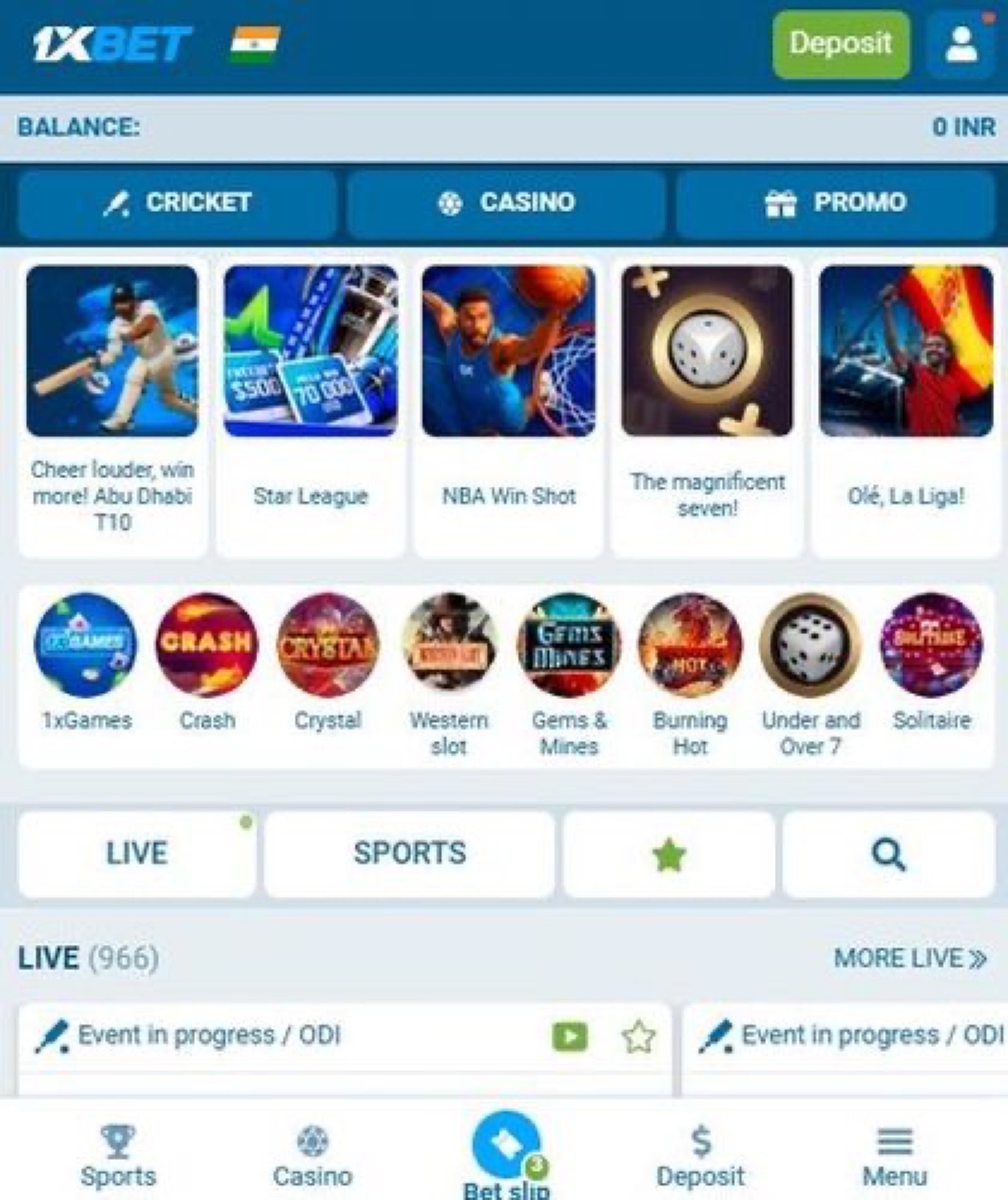
how goal alerts work inside the application
Before you change anything, check the phone first. Android shows a notification only if the system allows the 1xBet app to post them. Open Settings, then Apps, then 1xBet, and look for Notifications. Make sure the master switch is on.
Inside the 1xBet application itself there is a separate menu. You can allow goals, line changes, bet settlements and news separately. If you only want goals, switch the others off. The app will then stay quiet except when the net bulges.
Open the app, tap the hamburger icon in the top corner, and choose “Settings and privacy.” Then select “Notifications” to see the list of individual switches. The master switch sits at the very top. Goal alerts live under a category often called “Live matches.” Flipping that one on takes about three seconds.
On the Android side, the path is Settings, then Apps, then 1xBet, then Notifications. Here you will see categories like Goals, Results, Promo, and Transfers. Toggling a category off stops that specific type of alert even if the app settings say otherwise. Both layers must agree for a push to reach your screen.
- Settings and privacy in the app menu
- Notifications submenu with separate switches for goals and results
- Application settings on the Android phone, under Apps and 1xBet
- Notification categories called Goals, Results and Promo in the Android panel
choosing the matches you want alerts for
Not every competition in the 1xBet app needs to interrupt you. In the football section you can star a league or a single fixture. Once a match is starred, the 1xBet application treats it as one you follow closely. Goal pushes then arrive for that fixture only.
You can star a league from the top list, or open a match page and use the star icon near the kickoff time. Removing the star works the same way. If you want the phone to go completely silent, turn off notifications for 1xBet in Android Settings under Apps, then Notifications. That toggle sits under Android security settings and applies to every category at once.
When you tap the star, a small toast message appears at the bottom of the screen. It says “Added to favourites.” The star itself turns solid yellow to confirm the change. You can mark as many fixtures as you like in one session. However, keeping more than a dozen live favourites may drain the battery slightly faster.
turning the switches on step by step
Here is the order most people follow on an Android phone.
- Launch the 1xBet app and tap the menu icon in the top corner.
- Scroll to Settings and privacy, then open Notifications.
- Enable the Goals switch and disable anything you do not need.
- Open Android Settings, Apps, then 1xBet, and confirm Notifications is allowed.
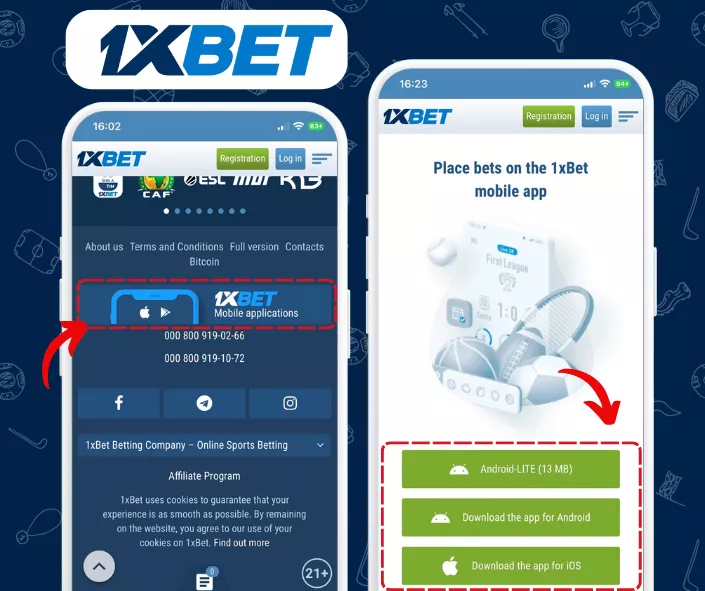
- If the app was installed from the APK, the Files app shows the download entry in the notification shade, and the package installer prompt asks for confirmation.
The install step takes a minute or two on Wi-Fi. Granting the permission itself takes only a few seconds. After that, the first goal alert usually arrives without any further action from you.
If you installed the application from an APK file, the package installer prompt appears immediately after the download finishes. You must tap “Install” and then “Done” to complete the process. This adds roughly fifteen seconds to the total setup time. The notification permissions usually reset after an update, so check them again after every upgrade.
Third key aspect: tuning alerts for the matches you follow
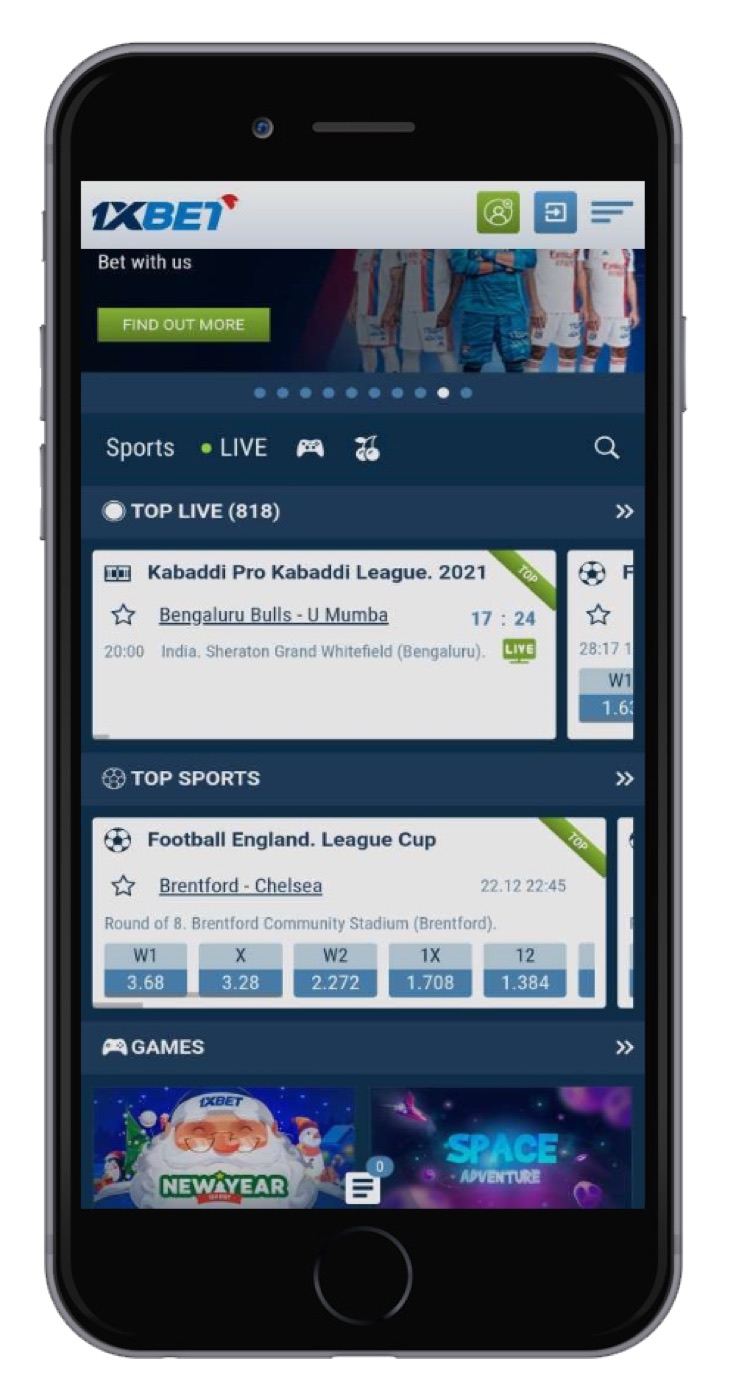
Alerts in the 1xBet app follow the matches you mark as favourites. Open a match, then tap the star icon in the top bar of the event page. That action adds the fixture to your favourites list on the main screen.
Once a fixture sits in favourites, goal messages appear in the notification shade as the match runs. You can mute any single alert by long-pressing the message in the shade. The system menu then offers the option to stop alerts from that channel.
Long-pressing the notification opens a compact menu with “Silence” and “Settings” options. Tapping “Silence” mutes that specific channel for the rest of the day. If you pick “Settings,” you are taken straight to the Android category list. From there, you can disable the entire Goals category if you need a break.
- Open a match and tap the star icon to mark it as a favourite.
- Leave the 1xBet app open in the background for alerts to arrive on time.
- Check your phone settings if no goal message appears within a minute of kickoff.
- Remove a fixture from favourites to stop its alerts for good.
Numbers worth knowing
| Setting | Typical behaviour |
|---|---|
| Favourite matches | Goal alerts appear within a few seconds of the kick |
| Alert refresh | Roughly every few seconds while a match runs live |
| Phone notification shade | Messages clear after you swipe them away |
| Favourites list | Holds as many fixtures as you mark at once |
| Bet slip updates | Prices move within seconds after a goal lands |
These timings come from ordinary phone use on a stable connection. 1xBet pushes goal messages as soon as the data arrives from the feed. A weak signal at the stadium can delay alerts by a few extra seconds.
Each goal message carries the score and the minute, so you can glance and look away. If you follow more than one league, the shade groups alerts by competition. Swipe up to clear the stack once you have read them.
Quick answers
Why does a goal alert arrive late?
The 1xBet app waits for the feed to confirm the score change. A shaky mobile network adds a few seconds before the message lands in your shade.
Can I get alerts on a locked phone screen?
Yes, as long as your phone allows lock screen notifications for the application. The 1xBet goal message then shows the score right on the lock screen.
Do alerts follow bets on the bet slip?
No, alerts track favourites only. Placing a live accumulator from your phone begins on the 1xbet apk installer file page, and the bet slip opens in one tap.